
Training Models in Vertex AI: Intro
Last updated on 2026-03-05 | Edit this page
Overview
Questions
- What are the differences between training locally in a Vertex AI
notebook and using Vertex AI-managed training jobs?
- How do custom training jobs in Vertex AI streamline the training
process for various frameworks?
- How does Vertex AI handle scaling across CPUs, GPUs, and TPUs?
Objectives
- Understand the difference between local training in a Vertex AI
Workbench notebook and submitting managed training jobs.
- Learn to configure and use Vertex AI custom training jobs for
different frameworks (e.g., XGBoost, PyTorch, SKLearn).
- Understand scaling options in Vertex AI, including when to use CPUs,
GPUs, or TPUs.
- Compare performance, cost, and setup between custom scripts and
pre-built containers in Vertex AI.
- Conduct training with data stored in GCS and monitor training job status using the Google Cloud Console.
Cost awareness: training jobs
Training jobs bill per VM-hour while the job is running. An
n1-standard-4 (CPU) costs ~ $0.19/hr; adding a
T4 GPU brings the total to ~ $0.54/hr. Jobs automatically
stop (and stop billing) when the script finishes. For a complete cost
reference, see the Compute for ML page
and the cost table in Episode 9.
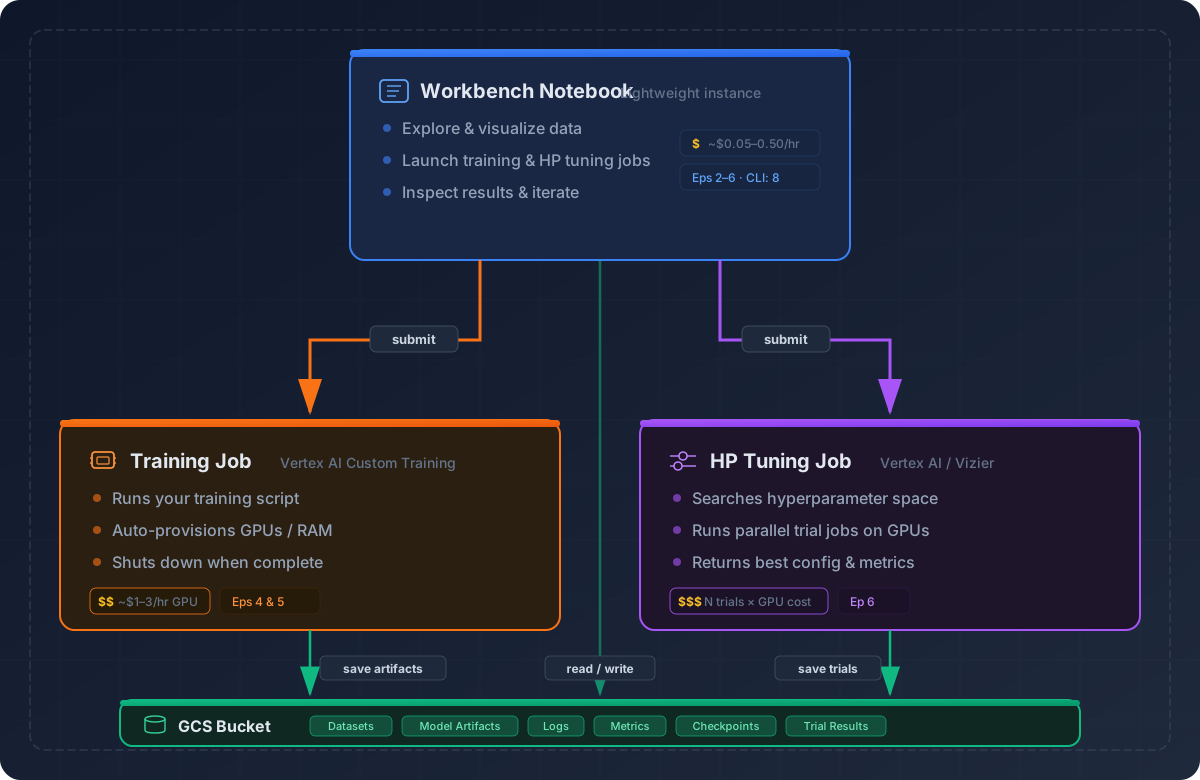
Here’s the architecture we introduced in Episode 2 — your lightweight notebook orchestrates training jobs that run on separate, more powerful VMs, with all artifacts stored in GCS:
Initial setup
1. Open pre-filled notebook
Navigate to
/Intro_GCP_for_ML/notebooks/04-Training-models-in-VertexAI.ipynb
to begin this notebook.
2. CD to instance home directory
To ensure we’re all in the same starting spot, change directory to your Jupyter home directory.
3. Set environment variables
This code initializes the Vertex AI environment by importing the Python SDK, setting the project, region, and defining a GCS bucket for input/output data.
-
PROJECT_ID: Identifies your GCP project. -
REGION: Determines where training jobs run (choose a region close to your data).
PYTHON
from google.cloud import storage
client = storage.Client()
PROJECT_ID = client.project
REGION = "us-central1"
BUCKET_NAME = "doe-titanic" # ADJUST to your bucket's name
LAST_NAME = "DOE" # ADJUST to your last name or name
print(f"project = {PROJECT_ID}\nregion = {REGION}\nbucket = {BUCKET_NAME}")How does storage.Client() know
your project?
When you call storage.Client() without arguments, the
library automatically discovers your credentials and project ID. This
works because Vertex AI Workbench VMs run on Google Compute Engine,
which provides a metadata server at a known internal
address. The client library queries this server to retrieve the project
ID and a service-account token — no keys or config files needed. If you
ran the same code on your laptop, you would need to authenticate first
with gcloud auth application-default login (see Episode 8 for details).
Testing train_xgboost.py locally in the notebook
Before submitting a managed training job to Vertex AI, let’s first examine and test the training script on our notebook VM. This ensures the code runs without errors before we spend money on cloud compute.
One script, two environments
A key design goal of train_xgboost.py is that the
same script runs unchanged on your laptop, inside a
Workbench notebook, and as a Vertex AI managed training job. Two
patterns make this possible:
GCS-aware I/O helpers (
read_csv_any,save_model_any): These functions check whether a path starts withgs://. If it does, they use thegoogle-cloud-storageclient to read or write. If not, they use plain local file I/O. This means you can pass--train ./titanic_train.csvfor a local test and--train=gs://my-bucket/titanic_train.csvfor a cloud job without changing any code.AIP_MODEL_DIRenvironment variable: When Vertex AI runs a CustomTrainingJob withbase_output_dirset, it injectsAIP_MODEL_DIR(ags://path) into the container. The script reads this variable to decide where to save the model. Locally, the variable is unset, so it falls back to the current directory (.).
This “write once, run anywhere” approach means you can debug locally first (fast, free) and then submit the exact same script to Vertex AI (scalable, managed) with confidence.
Understanding the XGBoost Training Script
Take a moment to review
Intro_GCP_for_ML/scripts/train_xgboost.py. This is a
standard XGBoost training script — it handles preprocessing, training,
and saving a model. What makes it cloud-ready is that it also supports
GCS (gs://) paths and adapts to Vertex AI conventions
(e.g., AIP_MODEL_DIR), so the same script runs locally or
as a managed training job without changes.
Try answering the following questions:
- Data preprocessing: What transformations are applied to the dataset before training?
-
Training function: What does the
train_model()function do? Why print the training time? -
Command-line arguments: What is the purpose of
argparsein this script? How would you change the number of training rounds? - Handling local vs. GCP runs: How does the script let you run the same code locally, in Workbench, or as a Vertex AI job? Which environment variable controls where the model artifact is written?
-
Training and saving the model: What format is the
dataset converted to before training, and why? How does the script save
to a local path vs. a
gs://destination?
After reviewing, discuss any questions or observations with your group.
-
Data preprocessing: The script fills missing values
(
Agewith median,Embarkedwith mode), maps categorical fields to numeric (Sex→ {male:1, female:0},Embarked→ {S:0, C:1, Q:2}), and drops non-predictive columns (PassengerId,Name,Ticket,Cabin). -
Training function:
train_model()constructs and fits an XGBoost model with the provided parameters and prints wall-clock training time. Timing helps compare runs and make sensible scaling choices. -
Command-line arguments:
argparselets you set hyperparameters and file paths without editing code (e.g.,--max_depth,--eta,--num_round,--train). To change rounds:python train_xgboost.py --num_round 200 -
Handling local vs. GCP runs:
-
Input: You pass
--trainas either a local path (train.csv) or a GCS URI (gs://bucket/path.csv). The script automatically detectsgs://and reads the file directly from Cloud Storage using the Python client. -
Output: If the environment variable
AIP_MODEL_DIRis set (as it is in Vertex AI CustomJobs), the trained model is written there—often ags://path. Otherwise, the model is saved in the current working directory, which works seamlessly in both local and Workbench environments.
-
Input: You pass
-
Training and saving the model: The training data is
converted into an XGBoost
DMatrix, an optimized format that speeds up training and reduces memory use. The trained model is serialized withjoblib. When saving locally, the file is written directly to disk. If saving to a Cloud Storage path (gs://...), the model is first saved to a temporary file and then uploaded to the specified bucket.
Before scaling training jobs onto managed resources, it’s essential to test your training script locally. This prevents wasting GPU/TPU time on bugs or misconfigured code. Skipping these checks can lead to silent data bugs, runtime blowups at scale, inefficient experiments, or broken model artifacts.
Sanity checks before scaling
- Reproducibility – Do you get the same result each time? If not, set seeds controlling randomness.
- Data loads correctly – Dataset loads without errors, expected columns exist, missing values handled.
- Overfitting check – Train on a tiny dataset (e.g., 100 rows). If it doesn’t overfit, something is off.
- Loss behavior – Verify training loss decreases and doesn’t diverge.
- Runtime estimate – Get a rough sense of training time on small data before committing to large compute.
- Memory estimate – Check approximate memory use to choose the right machine type.
- Save & reload – Ensure model saves, reloads, and infers without errors.
Download data into notebook environment
Sometimes it’s helpful to keep a copy of data in your notebook VM for quick iteration, even though GCS is the preferred storage location. For example, downloading locally lets you test your training script without any GCS dependencies, making debugging faster. Once you’ve verified everything works, the actual Vertex AI job will read directly from GCS.
Local test run of train_xgboost.py
Running a quick test on the Workbench notebook VM is cheap — it’s a lightweight machine that costs only ~$0.19/hr. The real cost comes later when you launch managed training jobs with larger machines or GPUs. Think of your notebook as a low-cost controller: use it to catch bugs and verify logic before spending on cloud compute.
As you gain confidence, you can skip the notebook VM entirely and run
these tests on your own laptop or lab machine — then submit jobs to
Vertex AI via the gcloud CLI or Python SDK from anywhere
(see Episode 8). That eliminates the
VM cost altogether.
- For large datasets, use a small representative sample of the total dataset when testing locally (i.e., just to verify that code is working and model overfits nearly perfectly after training enough epochs)
- For larger models, use smaller model equivalents (e.g., 100M vs 7B params) when testing locally
PYTHON
# Pin the same XGBoost version used by the Vertex AI prebuilt container
# (xgboost-cpu.2-1) so local and cloud results are identical.
!pip install xgboost==2.1.0
PYTHON
# Training configuration parameters for XGBoost
MAX_DEPTH = 3         # maximum depth of each decision tree (controls model complexity)
ETA = 0.1             # learning rate (how much each tree contributes to the overall model)
SUBSAMPLE = 0.8       # fraction of training samples used per boosting round (prevents overfitting)
COLSAMPLE = 0.8       # fraction of features (columns) sampled per tree (adds randomness and diversity)
NUM_ROUND = 100       # number of boosting iterations (trees) to train

import time as t
start = t.time()

# Run the custom training script with hyperparameters defined above
!python Intro_GCP_for_ML/scripts/train_xgboost.py \
    --max_depth $MAX_DEPTH \
    --eta $ETA \
    --subsample $SUBSAMPLE \
    --colsample_bytree $COLSAMPLE \
    --num_round $NUM_ROUND \
    --train titanic_train.csv

print(f"Total local runtime: {t.time() - start:.2f} seconds")
Training on this small dataset should take <1 minute. Log runtime as a baseline. You should see the following output file:
-
xgboost-model— Serialized XGBoost model (Booster) via joblib; load withjoblib.load()for reuse.
Evaluate the trained model on validation data
Now that we’ve trained and saved an XGBoost model, we want to do the
most important sanity check:
Does this model make reasonable predictions on unseen
data?
This step: 1. Loads the serialized model artifact that was written by
train_xgboost.py 2. Loads a test set of Titanic passenger
data 3. Applies the same preprocessing as training 4. Generates
predictions 5. Computes simple accuracy
First, we’ll download the test data
PYTHON
blob = bucket.blob("titanic_test.csv")
blob.download_to_filename("titanic_test.csv")

print("Downloaded titanic_test.csv")
Then, we apply the same preprocessing function used by our training script before applying the model to our data.
Note: The
importbelow treats the repo as a Python package. This works because we cloned the repo into/home/jupyter/and the directory contains an__init__.py. If you get anImportError, make sure your working directory is/home/jupyter/(run%cd /home/jupyter/first).
Note on test data: The training script internally splits its input data 80/20 for training and validation. The
titanic_test.csvfile we use here is a separate, held-out test set that was never seen during training — not even by the internal validation split. This gives us an unbiased measure of model performance.
PYTHON
import pandas as pd
import xgboost as xgb
import joblib
from sklearn.metrics import accuracy_score
from Intro_GCP_for_ML.scripts.train_xgboost import preprocess_data  # reuse same preprocessing

# Load test data
test_df = pd.read_csv("titanic_test.csv")

# Apply same preprocessing from training
X_test, y_test = preprocess_data(test_df)

# Load trained model from local file
model = joblib.load("xgboost-model")

# Predict on test data
dtest = xgb.DMatrix(X_test)
y_pred = model.predict(dtest)
y_pred_binary = (y_pred > 0.5).astype(int)

# Compute accuracy
acc = accuracy_score(y_test, y_pred_binary)
print(f"Test accuracy: {acc:.3f}")
You should see test accuracy in the range of 0.78–0.82. If accuracy is significantly lower, double-check that the test data downloaded correctly and that the preprocessing matches the training script.
Experiment with hyperparameters
Try changing NUM_ROUND to 200 and
re-running the local training and evaluation cells above. Does accuracy
improve? How does the runtime change? Then try
MAX_DEPTH = 6. What happens to accuracy — does the model
improve, or does it start overfitting?
Increasing NUM_ROUND from 100 to 200 may marginally
improve accuracy but roughly doubles runtime. Increasing
MAX_DEPTH from 3 to 6 lets trees capture more complex
patterns but can lead to overfitting on a small dataset like Titanic —
you may see training accuracy increase while test accuracy stays flat or
drops. This is why testing hyperparameters locally before scaling is
important.
Training via Vertex AI custom training job
Unlike “local” training using our notebook’s VM, this next approach launches a managed training job that runs on scalable compute. Vertex AI handles provisioning, scaling, logging, and saving outputs to GCS.
Which machine type to start with?
Start with a small CPU machine like n1-standard-4. Only
scale up to GPUs/TPUs once you’ve verified your script. See Compute
for ML for guidance.
Creating a custom training job with the SDK
Reminder: We’re using the Python SDK from a notebook here, but the same
aiplatform.CustomTrainingJobcalls work identically in a standalone.pyscript, a shell session, or a CI pipeline. You can also submit jobs entirely from the command line withgcloud ai custom-jobs create. See the callout in Episode 2 for more details.
We’ll first initialize the Vertex AI platform with our environment
variables. We’ll also set a RUN_ID and
ARTIFACT_DIR to help store outputs.
PYTHON
from google.cloud import aiplatform
import datetime as dt
RUN_ID = dt.datetime.now().strftime("%Y%m%d-%H%M%S")
ARTIFACT_DIR = f"gs://{BUCKET_NAME}/artifacts/xgb/{RUN_ID}/"  # everything will live beside this
print(f"project = {PROJECT_ID}\nregion = {REGION}\nbucket = {BUCKET_NAME}\nartifact_dir = {ARTIFACT_DIR}")

# Staging bucket is only for the SDK's temp code tarball (aiplatform-*.tar.gz)
aiplatform.init(project=PROJECT_ID, location=REGION, staging_bucket=f"gs://{BUCKET_NAME}/.vertex_staging")
What does
aiplatform.init()do?
aiplatform.init()sets session-wide defaults for the Vertex AI Python SDK. Every SDK call you make afterward (creating jobs, uploading models, querying metadata, etc.) will inherit these values so you don’t have to repeat them each time. The three arguments we pass here are:
Argument Purpose projectThe Google Cloud project that owns (and is billed for) all Vertex AI resources you create. locationThe region where jobs run and artifacts are stored (e.g., us-central1). Must match the region of any buckets or endpoints you reference.staging_bucketA Cloud Storage path where the SDK automatically packages and uploads your training code as a tarball (e.g., aiplatform-2025-01-15-…-.tar.gz). The training VM downloads this tarball at startup to run your script. We point it to a.vertex_stagingsubfolder to keep these temporary archives separate from your real data and model artifacts.You only need to call
aiplatform.init()once per notebook or script session. If you ever need to override a default for a single call (e.g., run a job in a different region), you can pass the argument directly to that method and it will take precedence.
A CustomTrainingJob
is the Vertex AI SDK object that ties together three things:
your training script, a container
image to run it in, and metadata such as a
display name. Think of it as a reusable job definition — it doesn’t
start any compute by itself. Only when you call job.run()
(next step) does Vertex AI actually provision a VM, ship your code to
it, and execute the script.
The code below creates a CustomTrainingJob that points
to train_xgboost.py, uses Google’s prebuilt XGBoost
training container (which already includes common dependencies like
google-cloud-storage), and sets a display_name
for tracking the job in the Vertex AI console.
Tip: If your script needs packages not included in the prebuilt container, you can pass a
requirementslist toCustomTrainingJob(e.g.,requirements=["scikit-learn>=1.3"]).
Prebuilt containers for training
Vertex AI provides prebuilt Docker container images for model training. These containers are organized by machine learning frameworks and framework versions and include common dependencies that you might want to use in your training code. To learn more about prebuilt training containers, see Prebuilt containers for custom training.
PYTHON
job = aiplatform.CustomTrainingJob(
    display_name=f"{LAST_NAME}_xgb_{RUN_ID}",
    script_path="Intro_GCP_for_ML/scripts/train_xgboost.py",
    container_uri="us-docker.pkg.dev/vertex-ai/training/xgboost-cpu.2-1:latest",
)
Version alignment: Notice that the container tag
xgboost-cpu.2-1matches thexgboost==2.1.0we installed locally. This is intentional — pinning the same library version in both environments ensures that local and cloud training produce identical results given the same data and random seed.
Finally, this next block launches the custom training job on Vertex
AI using the configuration defined earlier. We won’t be charged
for our selected MACHINE until we run the below code using
job.run(). For an n1-standard-4
running 2–5 minutes, expect a cost of roughly
$0.01–$0.02 — negligible, but
good to be aware of as you scale to larger machines. This marks the
point when our script actually begins executing remotely on the Vertex
training infrastructure. Once job.run() is called, Vertex
handles packaging your training script, transferring it to the managed
training environment, provisioning the requested compute instance, and
monitoring the run. The job’s status and logs can be viewed directly in
the Vertex AI Console under Training → Custom jobs.
If you need to cancel or modify a job mid-run, you can do so from the console or via the SDK by calling job.cancel(). When the job completes, Vertex automatically tears down the compute resources so you only pay for the active training time.
- The
argslist passes command-line parameters directly into your training script, including hyperparameters and the path to the training data in GCS. -
replica_count=1means we run a single training worker. Increase this for distributed training across multiple machines (e.g., data-parallel training with large datasets). -
base_output_dirspecifies where all outputs (model, metrics, logs) will be written in Cloud Storage. -
machine_typecontrols the compute resources used for training. - When
sync=True, the notebook waits until the job finishes before continuing, making it easier to inspect results immediately after training.
PYTHON
job.run(
    args=[
        f"--train=gs://{BUCKET_NAME}/titanic_train.csv",
        f"--max_depth={MAX_DEPTH}",
        f"--eta={ETA}",
        f"--subsample={SUBSAMPLE}",
        f"--colsample_bytree={COLSAMPLE}",
        f"--num_round={NUM_ROUND}",
    ],
    replica_count=1,
    machine_type=MACHINE, # MACHINE variable defined above; adjust to something more powerful when needed
    base_output_dir=ARTIFACT_DIR,  # sets AIP_MODEL_DIR for your script
    sync=True,
)

print("Model + logs folder:", ARTIFACT_DIR)
This launches a managed training job with Vertex AI. It should take 2-5 minutes for the training job to complete.
Understanding the training output message
After your job finishes, you may see a message like:
Training did not produce a Managed Model returning None.
This is expected when running a CustomTrainingJob without
specifying deployment parameters. Vertex AI supports two modes:
-
CustomTrainingJob (research/development) – You
control training and save models/logs to Cloud Storage via
AIP_MODEL_DIR. This is ideal for experimentation and cost control. -
CustomTrainingJob with model registration (for
deployment) – You include
model_serving_container_image_uriandmodel_display_name, and Vertex automatically registers a Managed Model in the Model Registry for deployment to an endpoint.
In our setup, we’re intentionally using the simpler
CustomTrainingJob path without model registration. Your
trained model is safely stored under your specified artifact directory
(e.g., gs://{BUCKET_NAME}/artifacts/xgb/{RUN_ID}/), and you
can later register or deploy it manually when ready.
Monitoring training jobs in the Console
Why do I see both a Training Pipeline and a Custom Job? Under the hood,
CustomTrainingJob.run()creates a TrainingPipeline resource, which in turn launches a CustomJob to do the actual compute work. This is normal — the pipeline is a thin wrapper that manages job lifecycle and (optionally) model registration. You can monitor progress from either view, but Custom Jobs shows the most useful details (logs, machine type, status).
- Go to the Google Cloud Console.
- Navigate to Vertex AI > Training > Custom Jobs.
- Click on your job name to see status, logs, and output model artifacts.
- Cancel jobs from the console if needed (be careful not to stop jobs you don’t own in shared projects).
Visit the console to verify it’s running.
Navigate to Vertex AI > Training > Custom Jobs in the Google Cloud Console to view your running or completed jobs.
If your job fails
Job failures are common when first getting started. Here’s how to debug:
- Check the logs first. In the Console, click your job name → Logs tab. The error message is usually near the bottom.
-
Common failure modes:
- Quota exceeded — Your project may not have enough quota for the requested machine type. Check IAM & Admin > Quotas.
- Script error — A bug in your training script. The traceback will appear in the logs. Fix the bug and re-run locally before resubmitting.
-
Wrong container — Mismatched framework version or
CPU/GPU container. Verify your
container_uri. - Permission denied on GCS — The training service account can’t access your bucket. Check bucket permissions.
- Re-test locally with the same arguments before resubmitting to avoid burning compute time on the same error.
Training artifacts
After the training run completes, we can manually view our bucket using the Google Cloud Console or run the below code.
PYTHON
total_size_bytes = 0

for blob in client.list_blobs(BUCKET_NAME):
    total_size_bytes += blob.size
    print(blob.name)

total_size_mb = total_size_bytes / (1024**2)
print(f"Total size of bucket '{BUCKET_NAME}': {total_size_mb:.2f} MB")
Training Artifacts → ARTIFACT_DIR
This is your intended output location, set via
base_output_dir.
It contains everything your training script explicitly writes. In our
case, this includes:
-
{BUCKET_NAME}/artifacts/xgb/{RUN_ID}/model/xgboost-model— Serialized XGBoost model (Booster) saved viajoblib; reload later withjoblib.load()for reuse or deployment.
System-Generated Staging Files
You’ll also notice files under .vertex_staging/ — one
timestamped tarball per job submission:
.vertex_staging/aiplatform-2026-03-04-05:51:20.248-aiplatform_custom_trainer_script-0.1.tar.gz
.vertex_staging/aiplatform-2026-03-04-05:53:28.009-aiplatform_custom_trainer_script-0.1.tar.gz
...
Each time you call job.run(...), the SDK packages your
training script into a .tar.gz, uploads it here, and the
training VM downloads it at startup. These accumulate quickly — the
example above shows 19 archives from a single day of iteration. They are
safe to delete once the job finishes, and you can automate cleanup with
Object
Lifecycle Management rules (e.g., auto-delete objects in
.vertex_staging/ after 7 days).
To delete all staging files now, run:
This won’t affect your model artifacts under
artifacts/.
Evaluate the trained model stored on GCS
Now let’s compare the model produced by our Vertex AI job to the one we trained locally. This time, instead of loading from the local disk, we’ll load both the test data and model artifact directly from GCS into memory — the recommended approach for production workflows.
PYTHON
import io

# Load test data directly from GCS into memory
bucket = client.bucket(BUCKET_NAME)
blob = bucket.blob("titanic_test.csv")
test_df = pd.read_csv(io.BytesIO(blob.download_as_bytes()))

# Apply same preprocessing logic used during training
X_test, y_test = preprocess_data(test_df)

# Load the model artifact from GCS
MODEL_BLOB_PATH = f"artifacts/xgb/{RUN_ID}/model/xgboost-model"
model_blob = bucket.blob(MODEL_BLOB_PATH)
model_bytes = model_blob.download_as_bytes()
model = joblib.load(io.BytesIO(model_bytes))

# Run predictions and compute accuracy
dtest = xgb.DMatrix(X_test)
y_pred_prob = model.predict(dtest)
y_pred = (y_pred_prob >= 0.5).astype(int)

acc = accuracy_score(y_test, y_pred)
print(f"Test accuracy (model from Vertex job): {acc:.3f}")Compare local vs. Vertex AI accuracy
Compare the test accuracy from your local training run with the accuracy from the Vertex AI job. Are they the same? Why or why not?
The two accuracy values should be very close (within
~1–2 percentage points) but may not be byte-for-byte identical, even
though both runs use the same script, hyperparameters, data, and random
seed (seed=42).
Why? The subsample=0.8 and
colsample_bytree=0.8 settings randomly sample rows and
columns each boosting round. A seed guarantees determinism only within
the exact same library version, NumPy build, and
BLAS/LAPACK backend. The Workbench notebook VM and the prebuilt training
container ship different underlying numerical libraries (e.g., OpenBLAS
vs. MKL), so even with identical XGBoost versions the random sampling
sequence can diverge slightly — producing a different model and
therefore a small accuracy difference.
If you want exact reproducibility, set subsample=1.0 and
colsample_bytree=1.0 (no random sampling) or accept that
minor variation across environments is normal and expected in
practice.
Explore job logs in the Console
Navigate to Vertex AI > Training > Custom Jobs in the Google Cloud Console. Find your most recent job and click on it. Can you locate:
- The Logs tab showing your script’s
print()output? - The training time printed by
train_model()? - The output artifact path?
- Click your job name, then select the Logs tab (or
View logs link). Your script’s
print()statements — including train/val sizes, training time, and model save path — appear in the log stream. - Look for the line
Training time: X.XX secondsin the logs. This comes from thetrain_model()function intrain_xgboost.py. - The artifact path is shown in the log line
Model saved to gs://...and also appears in the job details panel under output configuration.
Looking ahead: when training takes too long
The Titanic dataset is tiny, so our job finishes in minutes. In your real work, you’ll encounter datasets and models where a single training run takes hours or days. When that happens, Vertex AI gives you two main levers:
Option 1: Upgrade to more powerful machine types - Use a larger machine or add GPUs (e.g., T4, V100, A100). This is the simplest approach and works well for datasets under ~10 GB.
Option 2: Use distributed training with multiple replicas - Split the dataset across replicas with synchronized gradient updates. This becomes worthwhile when datasets exceed 10–50 GB or single-machine training takes more than 10 hours.
We’ll explore both options hands-on in the next episode when we train a PyTorch neural network with GPU acceleration.
-
Environment initialization: Use
aiplatform.init()to set defaults for project, region, and bucket. -
Local vs managed training: Test locally before
scaling into managed jobs.
-
Custom jobs: Vertex AI lets you run scripts as
managed training jobs using pre-built or custom containers.
-
Scaling: Start small, then scale up to GPUs or
distributed jobs as dataset/model size grows.
- Monitoring: Track job logs and artifacts in the Vertex AI Console.